Biomarker Data Analysis with Omics Playground: A Step-by-Step Tutorial

Published on June 3rd, 2024 
Written by Axel Martinelli

 9 min read

Biomarker analysis tab in Omics Playground

Introduction

In this biomarker data analysis tutorial, we will guide you through performing biomarker analysis using the Omics Playground platform. The dataset we will be using comes from an article by Logie et al. (2021), which investigates the therapeutic efficacy of withaferin A, a phytochemical kinase inhibitor, compared to the clinically approved BTK inhibitor ibrutinib.

For a general introduction to biomarker identification and the computational methods used for detection, read our blog post: “How to Find Biomarkers: Definition, Examples, and Computational Methods for Detection“.

About Biomarker Data Analysis in Omics Playground

The biomarker data analysis module in the Omics Playground platform is used for discovering biomarkers based on protein or gene expression levels.

The module, called “Find Biomarkers” in Omics Playground, can be found under Menu > Expression and consists of two main tabs:

  1. The “Feature selection” tab which contains the following plots:
    1. Variable importance 
    2. Biomarker expression
    3. Heatmap
    4. Decision tree
  2. The “Feature-set ranking” tab.
We’ll provide more details for each tab below.

Where to Start: Select Your Settings.

When you first access the Biomarkers tab, no plots will be displayed automatically. To generate the plots, you’ll need to configure your settings and click ‘Compute’.

Begin by navigating to the settings bar on the right-hand side of your dashboard. Here, you’ll find three fields specific to the Biomarkers tab:

  1. Predicted target field
  2. Filter samples field
  3. Feature set field

Step 1: Select your phenotype in the “Predicted target” field.

In the “Predicted target” field, you can select one of the phenotypes that you are interested in. In Figure 1, we selected the cross between phenotype and treatment.

Select "predicted target" in the settings tab of the Biomarker analysis tab
Figure 1. Predicted target field.

You also have the option to filter by samples (Figure 2), allowing you to include only a subset of sample groups for your analysis instead of all of them..

Filter samples field in Omics Playground
Figure 2. Filter samples field.

Step 2: Select all genes or a subset of genes

After selecting the phenotypes, you can select whether you want to focus on all the genes or just a specific gene family in the “Feature set” field. 

The ‘Feature set’ setting is set to ‘all’ by default, but you can restrict the calculations to a specific gene family or add a custom list of genes if you already have potential biomarkers that you want the platform to focus on. In this case, you can click on <custom> and copy and paste the list of gene acronyms into the dialogue box that appears on the platform (Figure 3).

Select custom set of features in the Biomarkers Analysis tab (Omics Playground)
Figure 3. Add custom genes/proteins.

Step 3: Click Compute to generate the plots

Once you have specified your settings, click on the ‘Compute’ button. After the computation is completed, the platform will generate four plots in the “Feature Selection” tab from which you can start your analysis. 

Feature Selection Tab

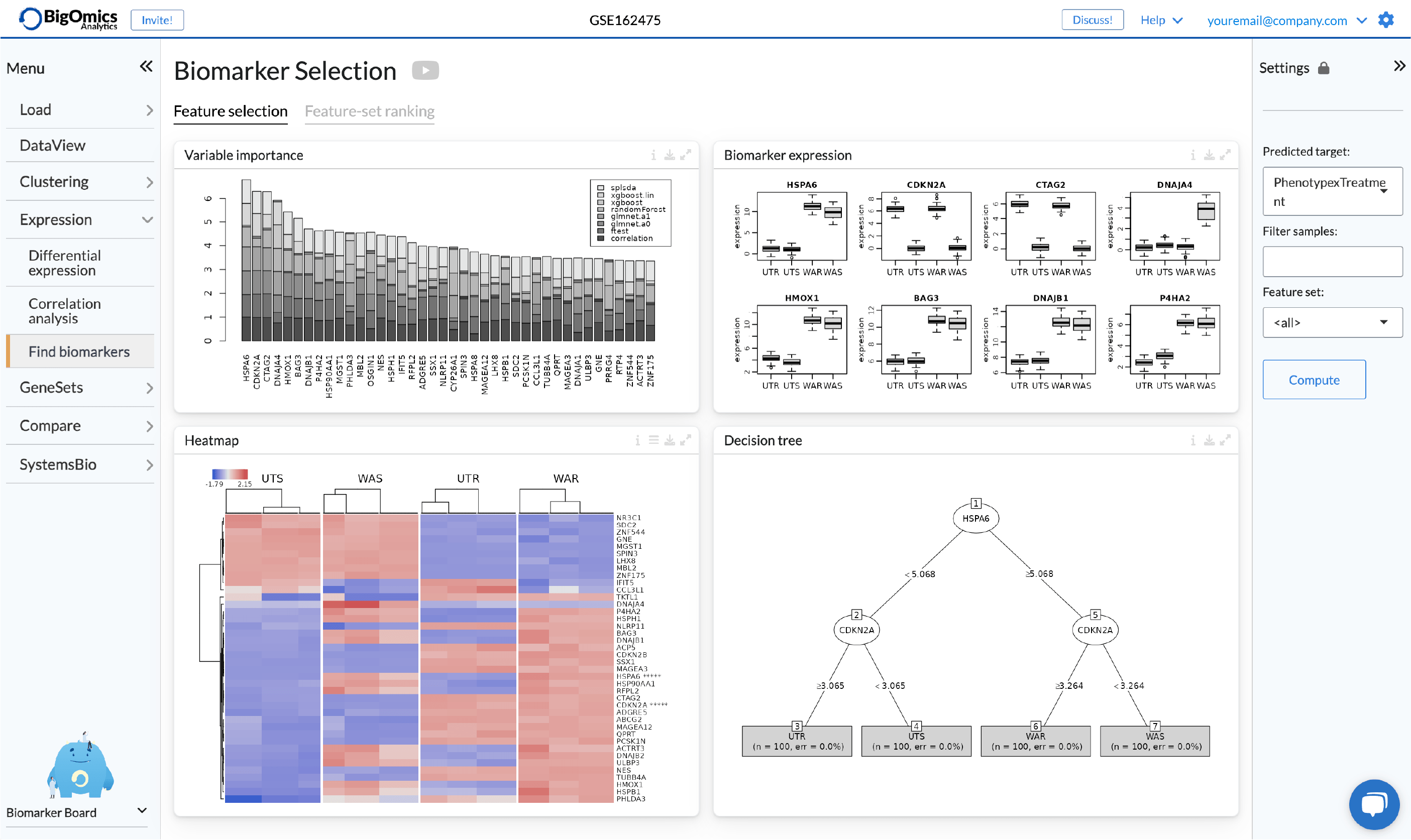
In the feature selection tab you will find the following four plots starting from bottom right (Figure 4):

  1. Decision tree.
  2. Biomarker Expression.
  3. Heatmap.
  4. Variable Importance.
Find Biomarkers module in Omics Playground
Figure 4. Find Biomarkers/Biomarker Selection module in Omics Playground.

The dashboard layout gives you the freedom to explore the data from any starting point you prefer. In this example, we’ll begin somewhat counterintuitively with the Decision Tree, located at the bottom right of the tab.

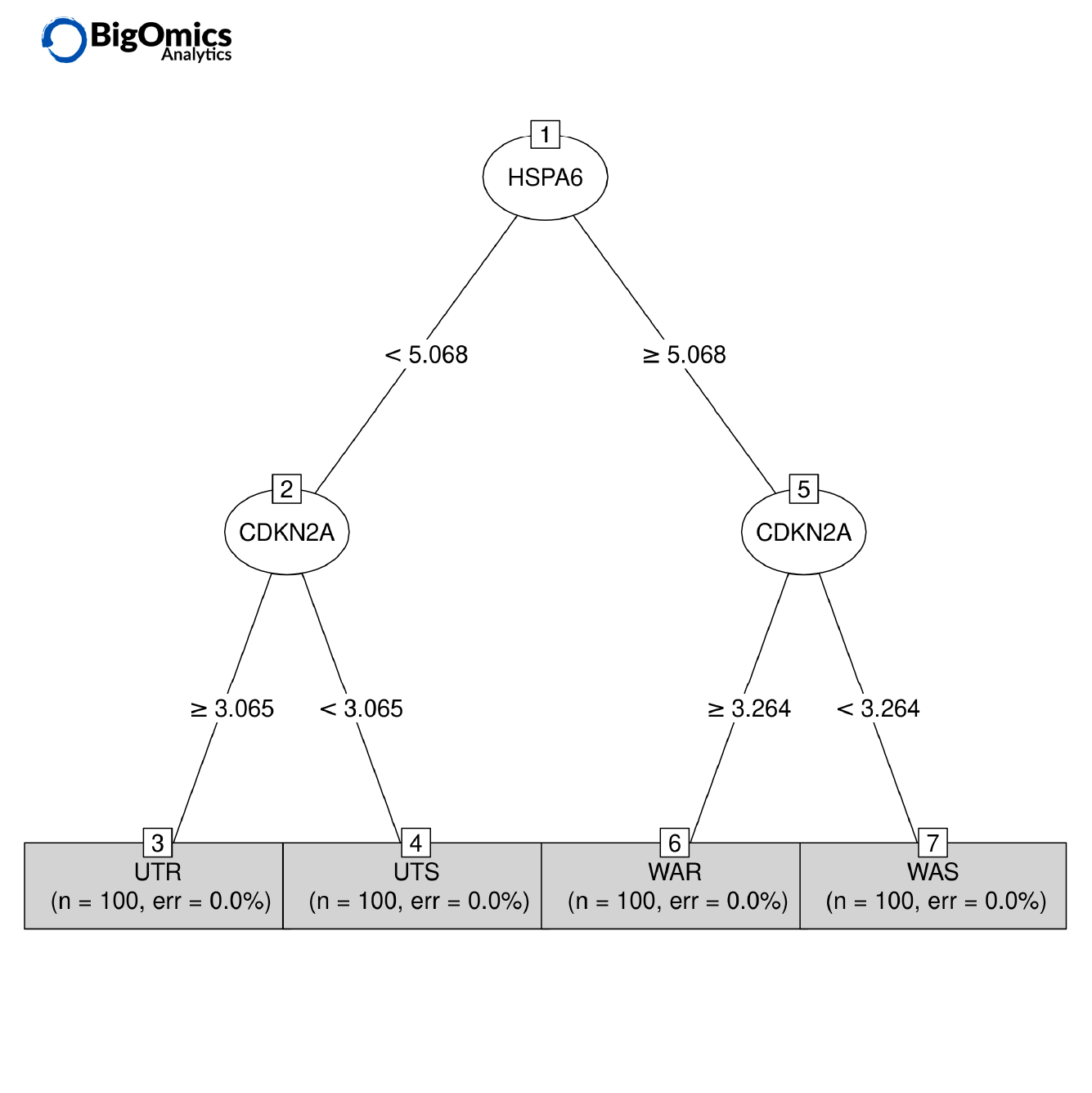
1. Decision tree

The Decision tree presents a classification solution based on the most probable biomarkers.

In this instance, the platform utilizes two genes, Heat Shock Protein A6 (HSPA6) and CDKN2A, to distinguish between four distinct phenotypic groups within the dataset.

These groups consist of treated and untreated samples, as well as susceptible and resistant samples (see Figure 5).

Decision tree plot in Omics Playground
Figure 5. Decision tree.

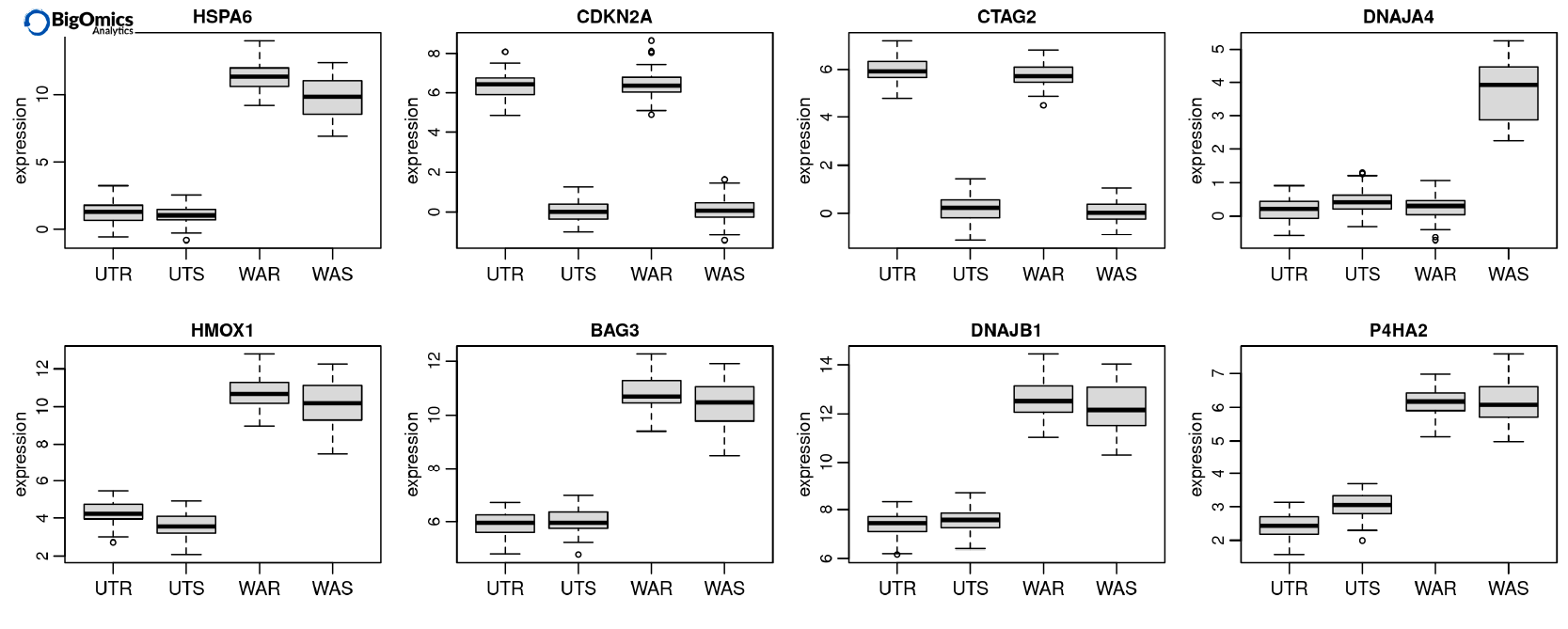
2. Biomarker Expression

The Biomarker Expression plot, located in the top-right corner of your dashboard, displays expression levels across different phenotypic groups.

In our example (Figure 6), you can see eight box plots representing the most likely biomarkers. The top two biomarkers correspond to the HSPA6 and CDKN2A genes, which were used to generate the decision tree shown in Figure 5.

Biomarker expression box plots in Omics Playground
Figure 6. Biomarker expression box plots.

3. Heatmap

Right next to the Decision Tree plot, you will find the Heatmap, which displays the most prominent potential biomarkers and their expression levels across all samples, categorized by phenotypic group.

In this view, you can see the two genes that were used to generate the decision tree, highlighted by asterisks on the platform (see Figure 7).

Heatmap plot in the Biomarkers tab Omics Playground.
Figure 7. Heatmap plot in the Biomarker Selection tab of Omics Playground.

4. Variable importance

Finally, we have the Variable importance plot which is the most important from a bioinformatics point of view (Figure 8).

Variable importance plot in Omics Playground
Figure 8. Heatmap plot in the Biomarker Selection tab of Omics Playground.

This plot combines the results of six different machine learning algorithms and two other statistical tests to produce cumulative scores of variable importance.

The algorithms include LASSO, elastic nets, random forests, and extreme gradient boosting. To learn more about the methods used you can consult the Biomarkers module documentation.

In our example, you can see that the two most prominent biomarkers based on the combination of different approaches are HSPA6 and CDKN2A. Specifically, HSPA6 was correctly identified as a biomarker by all eight approaches.

Feature-set Ranking Tab

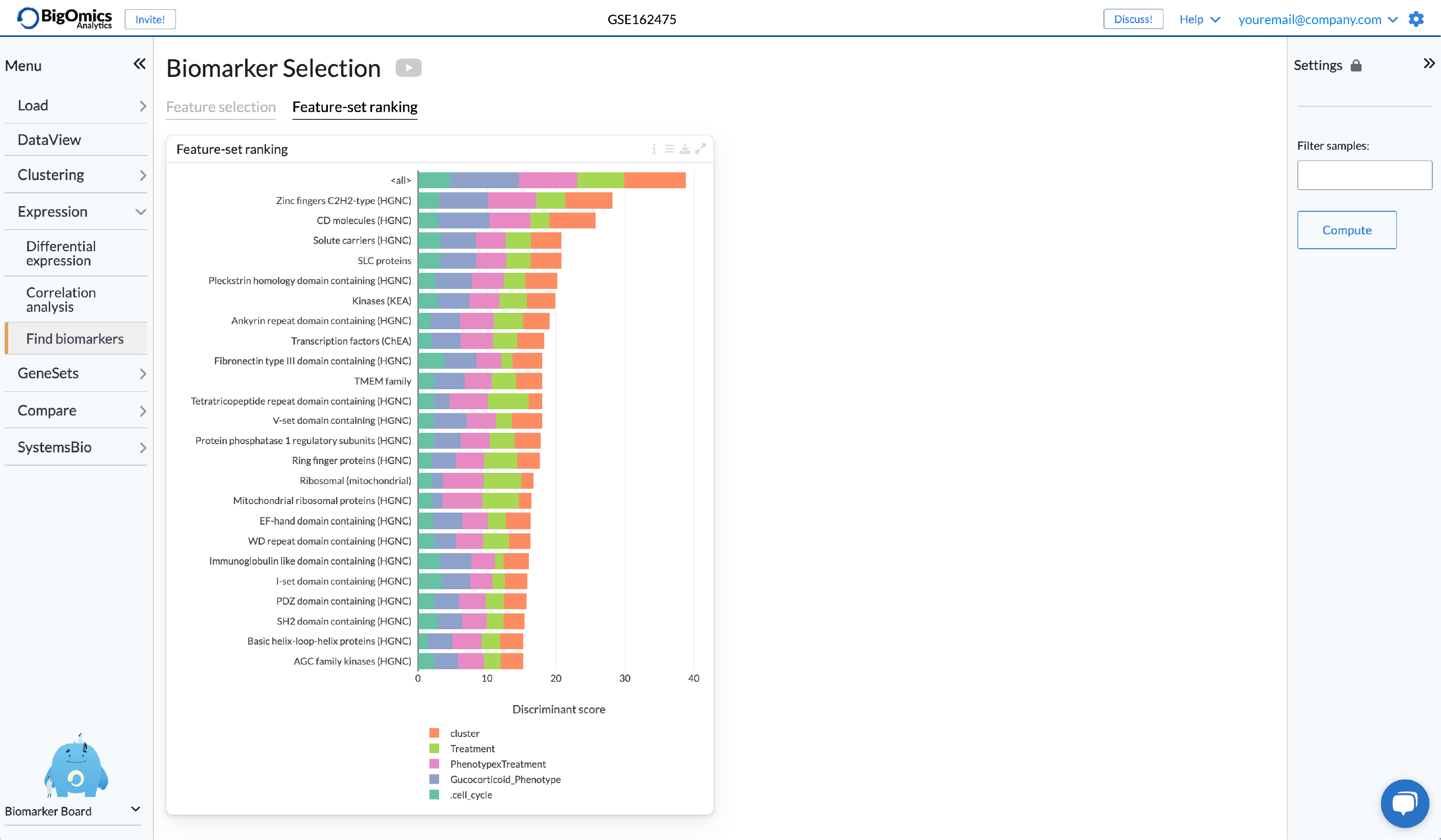
The second tab in our biomarkers analysis module is the Feature-set Ranking tab (Figure 9).

In this tab, genes are categorized by gene families, and the platform assesses their discriminatory power in distinguishing various phenotypic groups within each phenotype. This allows us to determine which feature set (or gene family) best explains the variance in the data.

Feature-set ranking tab in Omics Playground
Figure 9. Feature-set ranking tab in the Biomarker Selection module

Users can choose between three different methods for the calculation of the plot:

  1. P-value-based scoring (‘p-value’): computed as the average negative log p-value from the ANOVA test. 
  2. Correlation-based discriminative power (‘correlation’): calculated as the average 1-cor between the groups. Thus, a feature set is highly discriminative if the between-group correlation is low. 
  3. The ‘meta’ method: combines the scores of the two aforementioned methods in a multiplicative manner.

To choose your preferred method, you can click on the menu at the top of the plot and select the one you’re most interested in (Figure 10).

Method selection in the Feature-set ranking plot in Omics Playground
Figure 10. Methods for calculating the Feature-set ranking plot.

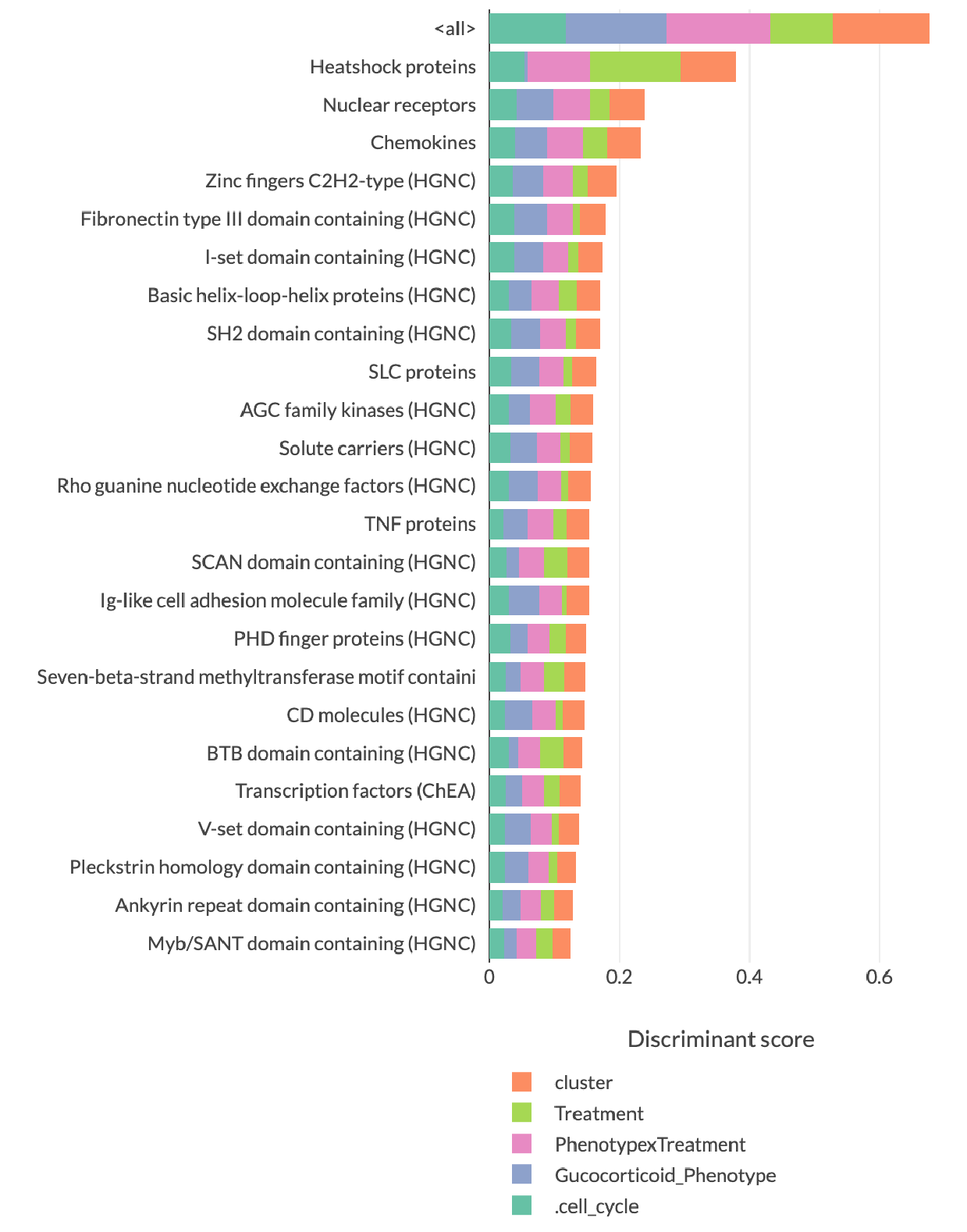
For this example, we used the correlation method and you can see that Heat shock proteins rank highest (Figure 11). This is largely due to their effectiveness in discriminating between treatment groups and the intersection of phenotype and treatment.

Feature-set ranking plot in Omics Playground.
Figure 11. Feature-set ranking plot.

You can also see that there are quite some prominent scores for the cluster and cell cycle phenotypes, which are automatically generated by the platform for every uploaded dataset. 

Crucially, we can see that heat shock proteins do not have strong discriminatory power for the glucocorticoid-resistant phenotype. Therefore, if you are more interested in these phenotypes, you might consider looking towards nuclear receptors or chemokines, for example.

If you’d like to see a full analysis of this dataset, you can read our re-analysis.

Biomarker analysis tab in Omics Playground

Upload your dataset and start exploring biomarker analysis with Omics Playground today!

About the Author

Axel Martinelli

Axel Martinelli’s academic background is in molecular biology and parasitology. He earned a Ph.D. on the genetics of strain-specific immunity against malaria infections and a master’s degree in bioinformatics with specialization in the analysis of omics data. During his postdoctoral career, he worked on genomics and transcriptomics studies and is currently the head of biology at Bigomics Analytics.